%20scale(0.100000,-0.100000)'%20fill='%23ffffff'%20stroke='none'%3e%3cpath%20d='M2420%202750%20c-163%20-20%20-354%20-77%20-494%20-147%20-145%20-72%20-236%20-142%20-398%20-304%20-134%20-134%20-168%20-163%20-230%20-193%20-87%20-43%20-191%20-61%20-298%20-53%20-41%204%20-145%2017%20-230%2031%20-257%2042%20-408%2058%20-550%2058%20-102%201%20-144%20-3%20-172%20-15%20-31%20-13%20-38%20-21%20-38%20-44%200%20-20%2011%20-40%2038%20-65%2048%20-47%20185%20-133%20331%20-207%20264%20-134%20811%20-361%201326%20-551%20319%20-118%20972%20-335%201320%20-440%20705%20-213%201355%20-371%201704%20-415%20164%20-21%20315%20-17%20354%208%2041%2027%2036%2062%20-16%20112%20-93%2089%20-284%20201%20-639%20374%20-172%2084%20-214%20109%20-272%20162%20-37%2034%20-79%2079%20-92%20100%20-36%2058%20-61%20146%20-69%20244%20-21%20270%20-101%20507%20-246%20727%20-79%20119%20-263%20303%20-379%20379%20-167%20110%20-337%20182%20-521%20219%20-116%2024%20-319%2033%20-429%2020z%20m458%20-204%20c312%20-81%20585%20-273%20747%20-525%2023%20-37%2057%20-94%2074%20-129%2036%20-72%20101%20-260%20100%20-288%200%20-11%20-9%208%20-19%2041%20-64%20213%20-164%20381%20-324%20541%20-101%20102%20-210%20181%20-334%20243%20-101%2051%20-257%2098%20-382%20117%20-191%2028%20-404%207%20-590%20-56%20-78%20-27%20-209%20-91%20-267%20-132%20-24%20-16%20-43%20-27%20-43%20-24%200%2010%20115%2083%20188%20120%2040%2020%20112%2050%20161%2066%20145%2049%20226%2060%20416%2056%20146%20-2%20184%20-7%20273%20-30z%20m-160%20-96%20c165%20-21%20343%20-88%20492%20-185%2090%20-59%20240%20-206%20299%20-294%2063%20-92%20126%20-231%20157%20-346%2027%20-96%2028%20-110%2028%20-340%201%20-275%203%20-281%2086%20-359%2027%20-26%2043%20-46%2035%20-46%20-39%200%20-171%2032%20-184%2044%20-12%2013%20-13%2027%20-4%2083%206%2037%209%2069%208%2071%20-1%201%20-12%20-24%20-24%20-55%20-12%20-32%20-28%20-67%20-36%20-77%20-15%20-19%20-17%20-19%20-127%208%20-163%2040%20-594%20165%20-798%20231%20-391%20127%20-724%20247%20-967%20350%20-111%2046%20-113%2048%20-113%2079%200%2018%207%2055%2015%2081%208%2027%2012%2051%2010%2053%20-2%202%20-15%20-18%20-28%20-45%20-14%20-26%20-34%20-57%20-46%20-67%20-22%20-20%20-22%20-20%20-112%2025%20l-91%2044%2062%207%20c34%204%2081%2017%20106%2028%2051%2025%2087%2068%20170%20200%2066%20106%20176%20228%20274%20302%2036%2027%20110%2072%20165%2099%20200%2098%20412%20135%20623%20109z%20m-1938%20-454%20c227%20-39%20271%20-48%20267%20-52%20-1%20-2%20-79%208%20-173%2022%20-93%2013%20-219%2026%20-281%2027%20-92%202%20-115%20-1%20-129%20-14%20-12%20-13%20-14%20-21%20-5%20-37%2035%20-65%20381%20-239%20871%20-437%20745%20-302%201643%20-594%202429%20-790%20503%20-125%20822%20-176%20914%20-146%2030%2010%2037%2017%2037%2039%200%2018%20-15%2041%20-52%2075%20-55%2054%20-54%2054%2037%20-6%20121%20-80%20154%20-131%20100%20-155%20-36%20-17%20-204%20-15%20-337%204%20-247%2034%20-682%20136%20-1153%20269%20-1111%20315%20-2312%20764%20-2799%201048%20-82%2047%20-156%20112%20-156%20137%200%2020%2016%2035%2045%2043%2040%2012%20244%20-3%20385%20-27z%20m223%20-226%20c13%20-15%208%20-12%20-12%206%20-23%2022%20-31%2036%20-25%2045%207%2011%209%209%2012%20-6%202%20-11%2014%20-31%2025%20-45z%20m3374%20-977%20c35%20-24%2067%20-52%2073%20-63%208%20-15%206%20-22%20-12%20-34%20-12%20-9%20-32%20-16%20-43%20-15%20-19%200%20-19%201%201%209%2012%205%2025%2013%2028%2019%2011%2017%20-52%2078%20-130%20127%20-41%2025%20-74%2048%20-74%2051%200%208%2088%20-45%20157%20-94z'/%3e%3cpath%20d='M1364%201125%20c13%20-169%2052%20-309%20126%20-457%20111%20-221%20307%20-416%20535%20-530%2097%20-49%20203%20-86%20315%20-110%2071%20-15%20132%20-21%20240%20-21%20111%200%20169%205%20248%2022%20245%2052%20435%20152%20598%20317%2034%2034%2076%2083%2094%20109%20l33%2048%20-65%20-55%20c-36%20-30%20-93%20-74%20-126%20-97%20-136%20-92%20-324%20-169%20-481%20-196%20-109%20-19%20-311%20-19%20-431%200%20-125%2021%20-281%2074%20-401%20136%20-195%20102%20-351%20244%20-476%20431%20-76%20114%20-132%20238%20-170%20376%20-15%2053%20-31%20102%20-36%20107%20-6%206%20-7%20-24%20-3%20-80z'/%3e%3c/g%3e%3c/svg%3e) VOID
VOIDVoid APIChat use casesSet up a personal family VPN with an AI agent
Set up a personal family VPN with an AI agent
An agent can help administer your own server while you describe the desired result. This guide expands the scenario in post 58: three profiles on a VPS, device connections, and repeatable deployment. OpenCode configuration is taken from the Void API setup guide; server-specific decisions follow inspection of your VPS.
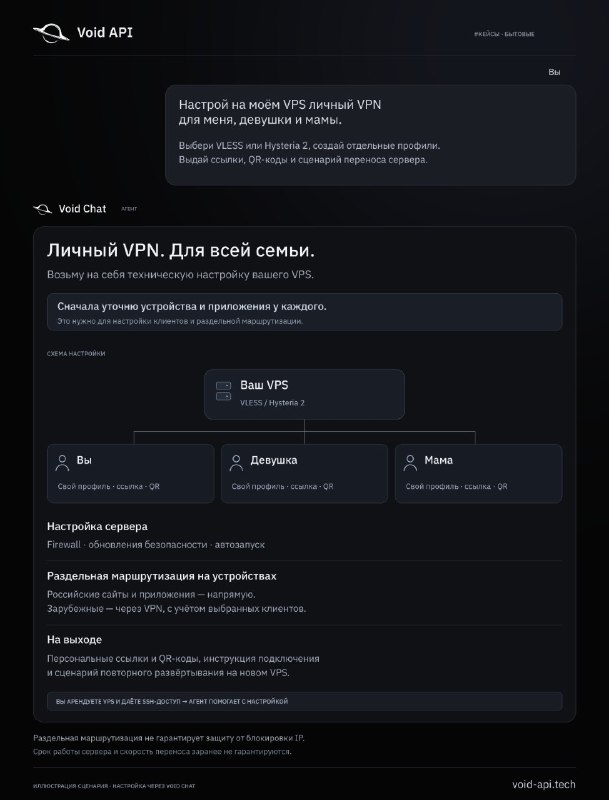
The goal and what the post actually shows
The goal is a personal VPN for a family without manually performing every administration step. The post proposes a rented VPS, agent SSH access, and separate connection links and QR codes for three people.
The picture illustrates the workflow; it is not a completed deployment screenshot or an importable configuration. In this guide OpenCode runs on your computer, connects to a model through Void API, and executes permitted SSH commands against your VPS.
1. Prepare the VPS and device details
Use a VPS you control, with a public address, supported Linux installation, SSH port, user, and an authentication method. The source mentions VDSka as an example; VPS hosting is separate from your Void API balance. Confirm access to the hosting control panel’s recovery console before server changes.
List each participant’s device, operating system, and existing client. Decide which apps need a direct connection and which traffic should use the tunnel. Hysteria 2 needs usable UDP connectivity; VLESS requirements depend on transport and client support.
2. Install and connect OpenCode using the Void API guide
Open the OpenCode connection guide on Void API. It links to the tool’s site for installation and provides the provider configuration and launch steps. If needed, follow that link, install the version for your OS, and return to configure Void API. Run the agent on the computer from which you will administer the VPS.
Create a gateway API key and check your balance. Use a separate project folder. The same three setup steps are reproduced below directly from the Void API guide generator: VOID_API_KEY, opencode.json, and launch. Replace MODEL_ID with a current tool-capable model ID from the catalog; keep the real key in the environment variable, not the JSON file.
Launch OpenCode, run /models, and select the Void API model. Test a short text response, then ask it to list project files, before connecting to the VPS. For a 401 check the key and terminal environment; for balance or model errors check the account and current catalog.
API key
Store your key in an environment variable.
export VOID_API_KEY='void_your_key'Run in Bash or Zsh. Sets the values for this terminal only. To keep them for future sessions, also add these commands to ~/.bashrc or ~/.zshrc.
Configuration
Create opencode.json in your project root.
{
  "$schema": "https://opencode.ai/config.json",
  "provider": {
    "void-api": {
      "npm": "@ai-sdk/openai-compatible",
      "name": "Void API",
      "options": {
        "baseURL": "https://void-api.tech/v1",
        "apiKey": "{env:VOID_API_KEY}"
      },
      "models": {
        "MODEL_ID": {
          "name": "MODEL_ID",
          "attachment": true,
          "modalities": {
            "input": [
              "text",
              "image"
            ],
            "output": [
              "text"
            ]
          }
        }
      }
    }
  }
}
Run
Start OpenCode and select a Void API model.
opencode
/models
Full OpenCode setup guide on Void APICreate an API keyAccount balanceModel catalog
3. Establish SSH access from the agent computer
First test a normal SSH login using the address, port, and user supplied by the host. Complete any initial password change in your terminal. If using keys, install the public key on the VPS and retain the private key locally.
A local SSH alias such as family-vps makes the handoff simpler. The example belongs in SSH configuration, not opencode.json. Replace the documentation address, user, port, and key path; then test ssh family-vps. Give the agent the alias rather than pasting your private key or password into a prompt.
Ask for a read-only inspection of the OS, resources, occupied ports, services, and firewall. Mention existing websites or applications so the installation preserves their configuration and does not reinstall the OS.
Host family-vps
  HostName 203.0.113.10
  User YOUR_SSH_USER
  Port 22
IdentityFile ~/.ssh/family-vpsssh family-vps4. Brief the agent
State that you own the server and that it is reachable as family-vps. Provide participant and device details. Ask the agent to clarify missing information and propose a plan before executing it.
The translated source prompt below requests not only a service but also separate profiles, device instructions, and repeatable deployment. Replace the participant descriptions as appropriate.
Set up a personal VPN on my VPS for three people.
Inspect the server and choose a suitable option: VLESS or Hysteria 2.
Configure the service, firewall, security updates, and automatic startup.
Create separate profiles for me and two family members.
Help configure split routing on our devices: selected local apps and sites directly, other selected traffic through the VPN. Ask about our devices and apps first.
Provide connection links, QR codes, and a short connection guide.
Prepare a repeatable deployment procedure for moving to a new server.
5. Select a protocol after inspection
Ask the agent to explain the VLESS or Hysteria 2 choice based on server OS, connectivity, and support across the devices. Domain and certificate requirements vary by mode; establish them for the actual configuration rather than assuming one universal setup.
The plan should identify services, ports, configuration locations, updates, and automatic startup. Preserve the active SSH port when changing the firewall. Verify service status and logs after installation instead of relying solely on an installer success message.
6. Generate three separate profiles and QR codes
Request individual credentials or configurations for all participants. Independent profiles let you replace or revoke one without changing the others. Provide a clear name, connection link, and QR code where supported.
Save a short guide, profile-to-participant mapping, and connection files in the project. Links and QR codes grant access to your server; share each only with its intended participant, not in a public case study or repository.
7. Connect one device at a time
Select clients supporting the actual protocol and operating systems. Ask for device-specific steps for importing a link, scanning a QR code, and enabling a profile. Different platforms can use different clients as long as protocol and configuration support match.
Import the first participant’s profile, enable it, and test the intended connection. Repeat for the remaining devices. If import fails, verify the URI type, client support, and configuration completeness before generating replacement profiles.
8. Configure split routing on the devices
The source suggests direct routing for Russian apps and sites and tunneling selected other traffic. Available controls vary: domain lists, per-app rules, TUN mode, or other routing options. The agent must know the actual devices and clients first.
Create a small test list and ask which rule applies to each service. Check DNS together with the client mode. Installing a server does not automatically configure split routing on every phone and computer.
Verify both direct and VPS-routed traffic. Split routing controls network paths; it does not guarantee access to every site or protect the server IP against blocking. The scenario concerns a personal protected connection.
9. Verify and document the result
Request a report covering protocol choice, service, port, configuration paths, startup status, profiles, and verification steps. Test each participant’s connection, intended routes, and reconnection behavior.
Confirm SSH remains available and arrange a VPS reboot check. Give the agent exact error text and time so it can inspect the corresponding logs. A QR code or the source illustration is not evidence that a connection works.
10. Prepare repeatable deployment and migration
Save an installation procedure and README describing the supported OS, dependencies, services, ports, firewall, and checks. Keep profile secrets separate from public instructions.
For migration, prepare another VPS, verify SSH, and give the agent a new alias. Apply the saved procedure, update endpoint details, and test all devices before retiring the old server. Repeatability helps but does not guarantee an instant migration.
Troubleshooting: what to tell the agent
If OpenCode fails, check the environment key, /v1 base URL, selected model ID, balance, and tool support using the Void API guide. For SSH failures, independently verify the host, port, user, and local authentication.
For an imported profile that cannot connect, provide OS, client version, protocol, attempt time, and a redacted error. Check the correct TCP or UDP port, firewall, service log, and profile parameters. If only some apps fail, inspect routing and DNS separately.
Locate the failing layer before reinstalling: model access, SSH, server service, client profile, or routing. Fixing the specific cause preserves working settings.
Frequently asked questions
Where is the OpenCode installation and Void API setup guide?
Use Connection → OpenCode on Void API. It links to the tool’s site and provides VOID_API_KEY, opencode.json, and the launch step with /models. The code in this case comes from that same setup generator.
Should I choose VLESS or Hysteria 2?
It depends on the VPS, network transport, and clients on the devices. Ask the agent to inspect the environment and explain its choice before installation.
Can I import links or QR codes from the picture?
No. The image illustrates a scenario, not working profiles. The agent must generate individual configurations on your own VPS.